Someone sends you a PDF form and one box is still empty. Or a report needs a note added on page three, a line highlighted, and your name at the bottom before you send it back. Jobs like these are small, but they used to mean installing heavy software or printing the file, writing on it by hand, and scanning it again.
There is a simpler way. You can edit a PDF online free, right inside your browser, with no install and no account. The Edit PDF tool on ToolMint Hub opens your file in the browser and lets you add text, highlights, shapes, drawings and notes on top of the pages. When you finish, you download the edited copy and send it on its way.
This guide explains what this kind of editor can and cannot do, walks through the editing steps one by one, and shares a few habits that keep the finished file looking tidy.
Table of Contents
What an online PDF editor actually does
A browser-based PDF editor works a bit like placing clear sheets over a printed page. The original page stays exactly as it was, and everything you add sits on top of it. You can type new text in empty areas, draw attention to a line with a highlight, circle something with a shape, or write a short note in the margin. When you download the file, those additions are saved into a new PDF copy.

This approach covers most everyday editing jobs surprisingly well. Filling in a form, adding a date next to a printed name, marking the lines a client should read, or stamping a short note on an invoice are all layer jobs. The editor is not trying to rebuild the document. It simply gives you a neat way to mark it up and add what is missing.
Because the editing happens in your browser, the file is handled on your own device rather than being sent off somewhere for processing. That is a practical plus when the document holds personal details, prices, or anything else you would rather keep to yourself. It also means the tool works on a laptop, a tablet, or a phone, as long as the browser can open the page.
How to edit a PDF online free, step by step
The whole process takes a few minutes for a short document. Here is the usual flow.
- Open the editor. Go to the Edit PDF tool in your browser. There is nothing to install and no sign-up form waiting for you.
- Choose your PDF. Pick the file from your device. The editor loads it and shows the pages so you can move through the document.
- Go to the page you want to change. Scroll or jump to the right page, and zoom in until the text is easy to read. Working zoomed in makes placement much more accurate.
- Pick a tool. Choose text when you want to type something, the highlighter for marking lines, the pen for freehand drawing, or a shape such as a rectangle or circle for pointing something out.
- Click on the page and add your content. For text, click where the words should go and start typing. For highlights and shapes, drag across the area you want to cover.
- Adjust the size, colour and position. Most additions can be moved after you place them. Nudge them until they sit neatly, and match the text size to the size used in the document so nothing looks out of place.
- Check every page. Before saving, flip through the whole file once. It is easy to miss a stray mark or a note placed on the wrong page.
- Download the edited PDF. Save the finished copy to your device, then open it once in your normal PDF reader to confirm everything looks right before you share it.
If you make a mistake halfway through, do not start over. Remove the element you just added, or use undo if the editor offers it, and carry on. The original file on your device stays untouched the whole time, so you can always go back to a clean copy.
What you can add to a PDF
Add text anywhere on the page
The text tool is the one most people use. Click on a blank part of the page, type, and the words appear in a text box you can move and resize. This is how you fill in forms that were never made fillable, add a missing date, write your name and address in a blank section, or drop a short explanation under a table. Matching the font size to the surrounding text makes the addition blend in.
Highlight lines and draw freehand
The highlighter lays a translucent colour over existing text, the same way a marker works on paper. It suits study notes, contracts and reports, anywhere a reader should notice one line more than the rest. The pen tool draws freehand, which is handy for underlining, circling a figure, or sketching a quick arrow toward the part that matters.

Shapes and short notes
Rectangles, circles and similar shapes frame the part of the page you are talking about. A box around a total, a circle around a date, or a note in the margin saying "please check this figure" tells the reader exactly where to look. Notes work well for review rounds too. Instead of describing a location in an email, you mark it on the page itself.
Sign-like annotations
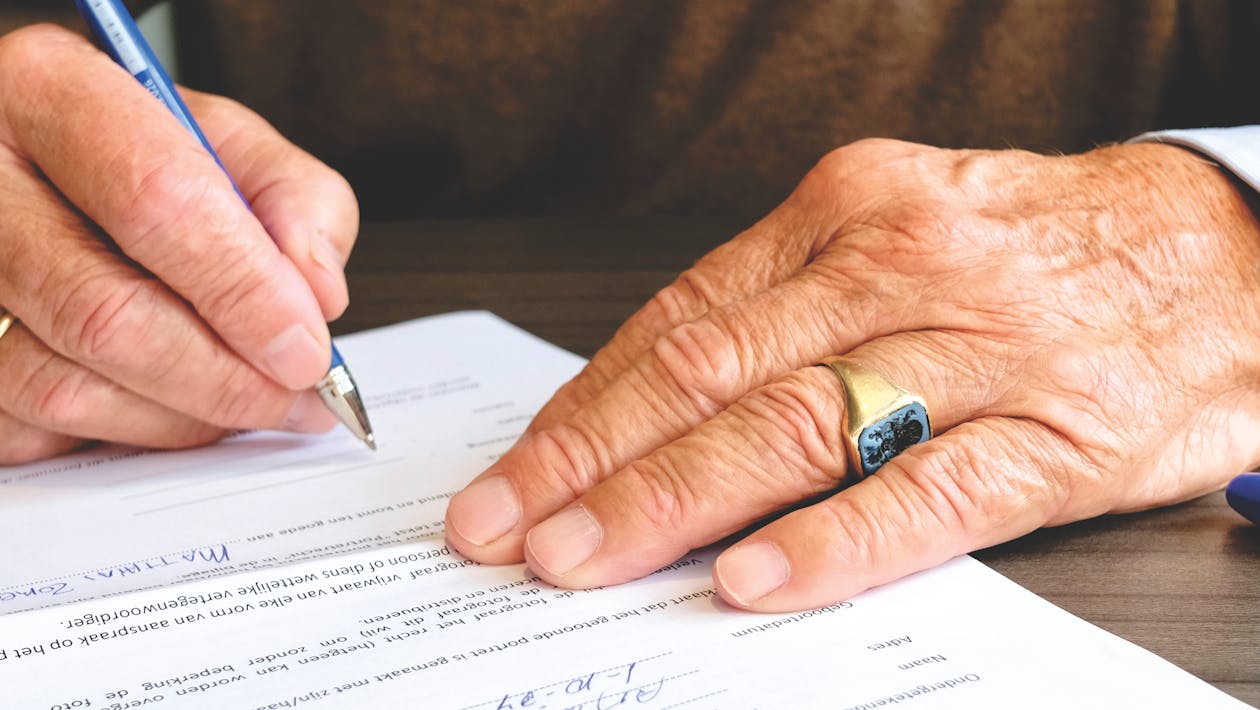
With the pen tool you can write your signature on the dotted line of a simple form, add initials in a corner, or write the date by hand. It looks like a signature drawn on the page. Be aware that this is a visual annotation, not a certified digital signature with identity checks behind it. For casual forms and internal paperwork it is often enough, but documents that legally need a verified electronic signature call for a proper signing service.
What this kind of editor cannot do
It is worth being clear about the limits, because they decide whether this tool fits your job.
The biggest one is the original text. A browser editor like this adds new elements on top of the page. It does not reach into the PDF and rewrite the words that are already there. If a sentence in the document has a typo baked into it, you cannot click into that sentence and retype it the way you would in a word processor. People sometimes cover the old text with a white box and type the corrected words over it, which can look fine on a plain background, but it is a patch rather than a true edit, and it shows on coloured or patterned pages.
Scanned PDFs are another limit. A scan is a picture of a page, not real text. You can still draw and type on top of it, since the editor treats it as a page to mark up, but you cannot select its words or treat them as editable text. Very large files depend on your device as well. Because everything runs in the browser, a huge PDF with hundreds of pages can feel slow on an older phone or a machine with little free memory. Splitting the file into smaller parts first makes life easier in that case.
Finally, layout changes are out of scope. Moving whole paragraphs around, reflowing text from page to page, or rebuilding a table belongs to the program that created the document. If the changes go that deep, editing the source file is the honest answer.
Tips for clean, tidy results
A few small habits make the difference between an edited PDF that looks natural and one that looks patched together.
- Zoom in before you place anything. Text and shapes land far more accurately at a larger view.
- Match the text size and colour to the document. Black text at a similar size blends in. Bright colours should be saved for highlights and marks that are meant to stand out.
- Line things up. If the form has a printed line, sit your text just above it, the way handwriting would sit.
- Use one highlight colour per meaning. Yellow for things to read, for example, and a second colour only for things that need action.
- Keep notes short. A few clear words in the margin beat a long paragraph squeezed into a small space.
- Save the download under a new name. Keeping the original untouched means you can redo the edit if the first attempt goes wrong.
- Open the finished file in a different reader before sending it. A quick check on a second app or device catches placement surprises.
Online editor or desktop software?
Desktop PDF editors are built for heavy work. They can rewrite original text, rebuild pages and handle long technical documents, and some of them do it very well. They also cost money, need installing and updating, and tie you to one machine. A browser editor trades that depth for speed and zero setup.
| Point to compare | Browser editor | Desktop editor |
|---|---|---|
| Cost | Free to use | Usually a paid licence or subscription |
| Setup | Open a web page and start | Download, install and update the program |
| Devices | Works on computers, tablets and phones | Tied to the machine it is installed on |
| Changing original text | No, additions sit on top of the page | Yes, in most full editors |
| Best suited for | Forms, notes, highlights, quick markups | Rebuilding documents and deep edits |
For the everyday jobs, filling a form, marking up a draft, signing a simple document, the browser route gets it done in minutes. The desktop route earns its keep when the document itself has to be taken apart and rebuilt.
Frequently asked questions
Is it really free to edit a PDF online with this tool?
Yes. The Edit PDF tool is free to open and use in your browser. There is no account to create and no payment step before the download. You open the file, make your changes and save the edited copy.
Can I change the words that are already inside the PDF?
No, and it is better to know this upfront. The editor adds new text and marks on top of the page. The original words stay as they are. If the source text itself must change, the document needs to be edited in the program that created it, or rebuilt from the original file.
Is my PDF uploaded to a server?
The editing happens in your browser on your own device. The file is not sent away for processing, which is one reason people prefer this approach for personal forms and paperwork with private details in them.
Can I fill in a form that has no fillable fields?
Yes, this is one of the most common uses. Many PDF forms are just flat pages with lines and boxes printed on them. With the text tool you click on each blank area and type your answer there, then download the filled copy.
Can I edit a scanned PDF?
You can mark it up, highlight areas and type on top of it. What you cannot do is treat the scanned words as real text, because a scan is an image of the page. If you need the words themselves as editable text, the scan first has to go through text recognition.
Will the person I send it to see my edits?
Yes. When you download the edited file, your text, highlights and drawings are saved into that copy as part of the pages. Anyone who opens the downloaded PDF in a normal reader sees the document with your additions in place.
Wrapping up
Most PDF editing jobs are smaller than they look. A form to fill, a line to highlight, a name and date to add, a note to leave in the margin. A free browser editor handles all of that without installs, accounts or uploads, as long as you remember that it works on top of the page rather than inside the original text. For those quick jobs, it is the shortest path from the file you received to the file you need to send.


