If you sell a product, label a parcel or organise stock, you will need a barcode sooner or later. Shops scan them at the till, couriers scan them on parcels, and warehouses scan them to keep track of what is on the shelves. A barcode is a simple idea, a set of black bars that a scanner can read, but the wrong type or a bad print can make a perfectly good code unreadable. Learning how to generate a barcode online free takes only a minute once you know the steps, and it saves you from reprinting labels that do not scan.
In this guide, you will learn what a barcode is, which types you are most likely to need, and how to generate one step by step in your browser. You will also learn how to print it so it scans first time, the mistakes that make barcodes fail, and how to test a code before you print a whole batch.
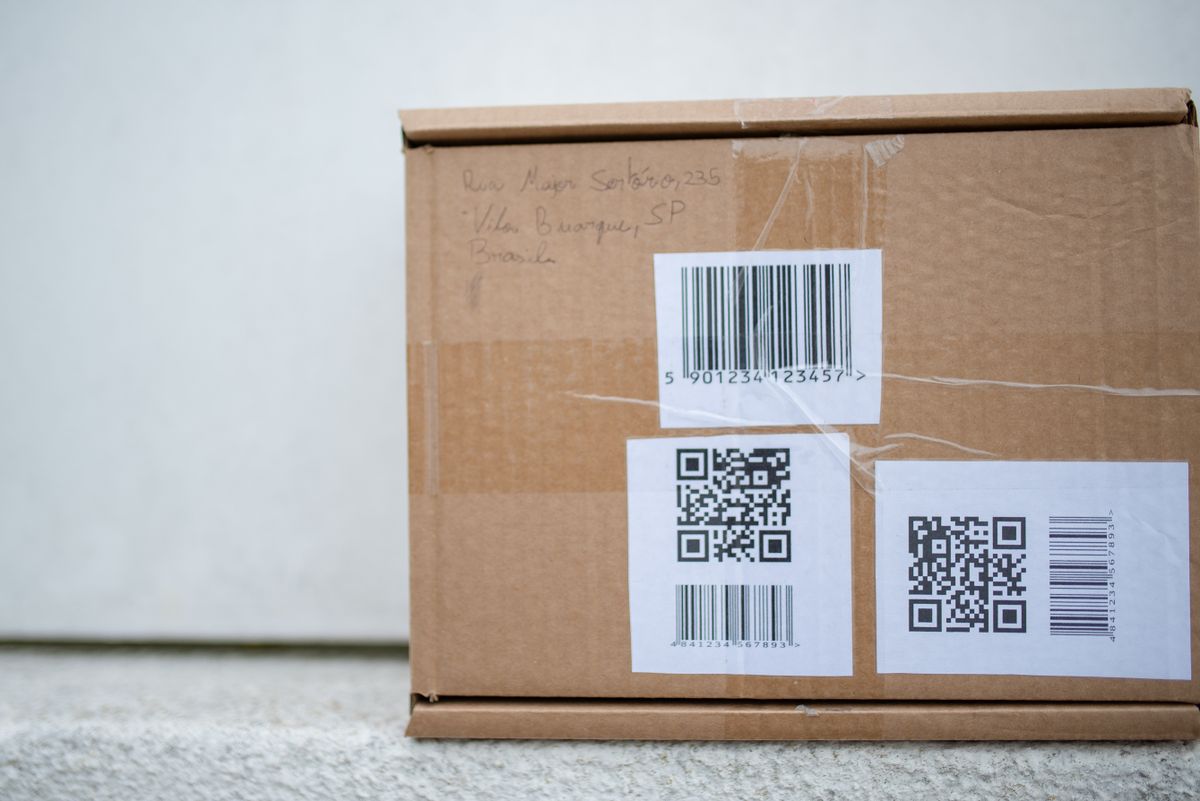
Table of Contents
What a Barcode Actually Is
A barcode is a picture of a number. The black bars and white gaps are arranged so that a scanner can read the number back, quickly and without typing. The number itself is the important part. It might be a product number, an order number or a tracking reference. The bars are only a way of carrying that number in a form a machine can read.
Most product barcodes also print the number in plain digits under the bars. That is a useful fallback. If a scanner cannot read the bars, a person can still type the digits. If the digits are missing or wrong, the barcode is much less useful, so always check that the printed digits match the number you entered.
Barcodes do not hold much information on their own. A product barcode holds a product number, not the price, the name or the stock level. Those details live in the shop or warehouse system, which looks the number up when the code is scanned. That is why the same barcode can mean different things in different systems, and why a barcode only works when the number it holds is the number the system expects.
The Barcode Types You Will Meet
The first type most people meet is EAN-13, the code on most retail products in shops around the world. It holds 13 digits. The first digits show the numbering organisation, the middle digits identify the maker and the product, and the last digit is a check digit, worked out from the other twelve, which helps the scanner spot a misread. If you sell a product in a shop, this is usually the type the shop will ask for.
The second type is UPC-A, the retail code that holds 12 digits instead of 13. It works in the same way as EAN-13, and many scanners can read both, but they are not the same code. A 12 digit number does not become a valid EAN-13 just by adding a zero at the front, and a 13 digit number does not fit in a UPC-A. Use the type your shop, market or buyer actually asks for.
The third type is Code 128, the workhorse of parcels, labels and stock rooms. It can hold letters and numbers, not just digits, and it can be as long or as short as you need. That makes it a good fit for order numbers, tracking references and internal stock codes, where the value is not a fixed length product number. If the code you need is a reference like an order number with letters in it, Code 128 is usually the right choice.
There are other types too, but these three cover most everyday needs. The key point is simple: pick the type the scanner at the other end expects. A barcode in the wrong type is not a slightly wrong barcode. It is a code the scanner was not set up to read, and it will fail even if the print is perfect.
How to Generate a Barcode, Step by Step
Generating a barcode online takes only a minute. Start by deciding which type you need. If a shop or market asked for a code, use the type they named. If you are making labels for your own stock or parcels, Code 128 is a safe choice for references with letters and numbers, while EAN-13 fits a retail product number of 13 digits.
Next, enter the number or text the barcode should hold. Type it carefully, digit by digit. A single wrong digit makes a different code, and the scanner will read the wrong number, not the one you meant. If the number has a check digit, the tool works it out for you, but the other digits must be exactly right.
Then check the size. The tool lets you set the width and height of the bars, and the size you pick should match how the code will be used. A barcode on a small product label can be smaller than one on a shipping box, but a code that is too small will not scan, and a code that is too large will not fit the label. Pick a size that fits the label with room to spare on both sides.
Now generate the code and look at it before you download. Check that the bars are clear, that the number printed below matches what you entered, and that there is plain white space on both sides of the bars. That white space is called the quiet zone, and scanners need it to find where the code starts and ends. A code that runs right up to the edge of a label is hard to scan, even if the bars are perfect.
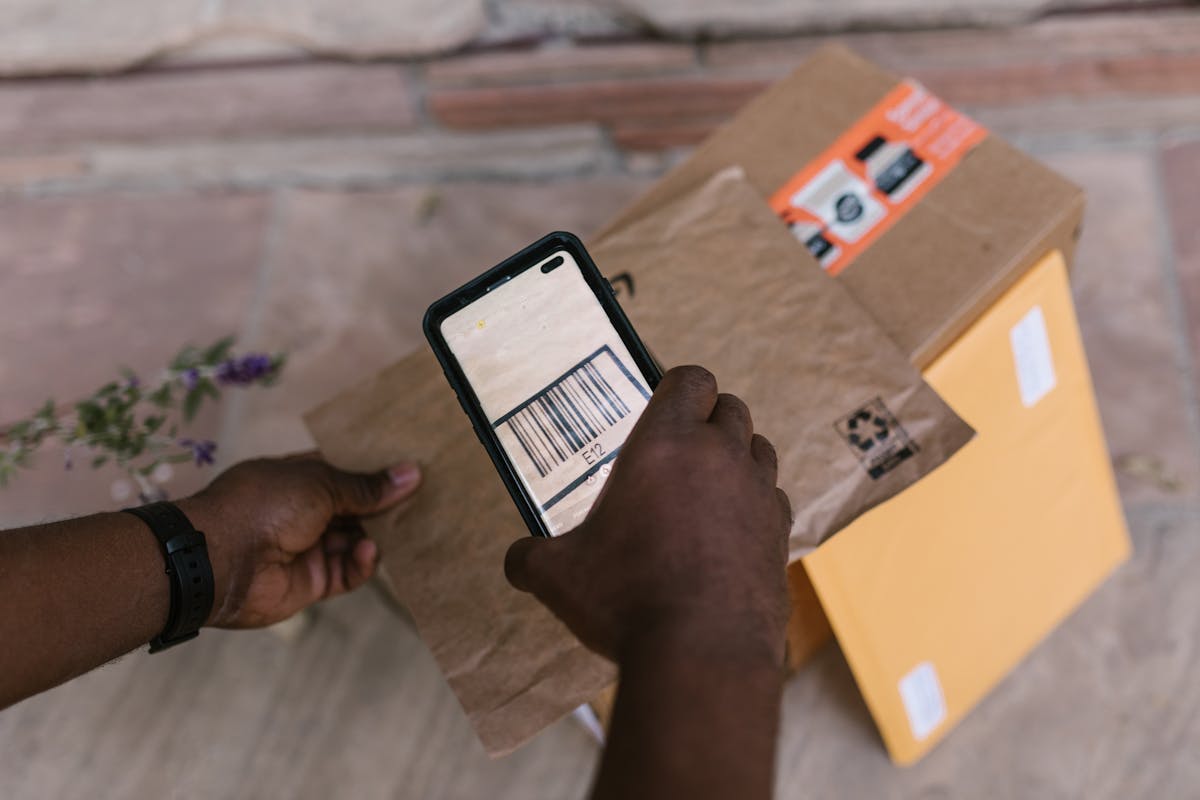
Finally, download the image and test it before you print a batch. Scan the downloaded image with a phone or a scanner and see if it reads the right number. If it scans, print one label and scan that too, because print can change things. Only print the full batch once a printed label has scanned cleanly.
A Worked Example
Here is a concrete example, using a code you can see in one of the photos in this article. The parcel in the photo carries a barcode with the number 5901234123457 printed under the bars. That is a 13 digit EAN-13 code, and the last digit, 7, is the check digit. The tool works the check digit out from the first twelve digits, so you only need to enter the product number, and the tool finishes the code for you.
Now take a different job, a parcel reference with letters in it, such as ORD-2481. That value will not fit in an EAN-13 or a UPC-A, because both only hold digits. It fits in Code 128, which holds letters, digits and a few symbols. Enter ORD-2481, pick Code 128, and the tool makes a code that holds exactly that reference. A warehouse scanner reading it gets ORD-2481 back, and the system can look the order up.
Both examples show the same lesson. The type follows the value and the use. A fixed length product number belongs in EAN-13 or UPC-A. A mixed reference belongs in Code 128. Pick the type first, enter the value carefully, and test the result before you print.
Getting the Print Right
Print quality decides whether a barcode scans. The bars must be dark and the gaps must be light, with a clear difference between the two. A printer that is low on ink, or a label printed on a shiny surface that reflects light, can blur that difference and make the code hard to read. Print in black on white where you can, and avoid printing a barcode over a coloured background or a picture.
Size matters too. If the bars are too narrow, a normal scanner cannot tell them apart. If the code is printed too small for the scanner at the other end, it will fail even when the print is clean. When in doubt, print a little larger, as long as the code still fits the label with white space on both sides. A code that is slightly larger than needed scans far better than one that is slightly too small.
Keep the quiet zone clear. That is the plain white space to the left and right of the bars, and scanners use it to find the edges of the code. Do not let text, borders or other labels crowd into it. A good rule is to leave at least a few millimetres of white space on each side, and more if the label allows it.
Finally, test a printed label, not just the image on screen. Print one label, scan it with the same kind of scanner that will read it in real use, and check that it returns the right number. Screen tests catch typing errors. Print tests catch ink, size and surface problems, and they are the step most people skip. A code that scans on screen but not on paper is not ready to use.
Common Mistakes When Making Barcodes
The most common mistake is using the wrong type. An EAN-13 where a UPC-A was asked for, or a Code 128 where a shop expected an EAN, will not scan in the system that asked for it, even if the code is perfect. Always use the type the shop, market or buyer named, and ask if you are not sure.
The second mistake is typing the number wrong. One wrong digit gives a different product or a different order, and the scanner will not warn you, because the wrong code can still be a valid code. Read the number back digit by digit after you enter it, and scan the result to check it reads the number you meant.
The third mistake is printing too small or on the wrong surface. A code squeezed onto a tiny label, printed on glossy paper, or placed over a picture may look fine but fail to scan. Print black on white, leave white space on both sides, and test a printed label before you print the batch.
The fourth mistake is reusing a product number. Each product should have its own number, and sharing one number between two products means the scanner cannot tell them apart. If you are selling more than one product, give each one its own code, and keep a simple list of which number belongs to which product.
Privacy: Your Codes Stay With You
Generating a barcode means typing in product numbers and order references, and many barcode sites ask you to create an account before they show a result. The Barcode Generator on ToolMint Hub works in your browser, with no sign-up and no account. You enter the value, pick the type, and the image is made on your own device. Your product numbers are not sent to anyone, and there is no sales call afterwards, because no one has your details.
That makes it a good place to make labels for a small shop or a home business. You can make as many codes as you like, without anyone knowing what you sell or how many products you have. Even so, keep your own habits in mind: use your own device rather than a shared computer for business work, and keep a private list of your product numbers, because the tool does not store them for you.
Using the Free Barcode Generator
The free Barcode Generator on ToolMint Hub makes Code 128, EAN and UPC product barcodes, free in your browser, with no sign-up and no account. Enter the value, pick the type, set the size, and download the image. Test the downloaded image with a scanner, then print one label and scan that too, before you print the full batch.
It is a good fit for product labels, parcel labels, stock labels and order references, for a small shop, a market stall or a home business. The generator makes the code. The check that it scans, in print, is yours, and it is the step that turns a picture of bars into a label you can trust.
Frequently Asked Questions
Is generating a barcode online free?
Yes. The Barcode Generator on ToolMint Hub is free to use, with no account and no sign-up. You can make as many barcodes as you like in your browser.
Which barcode type should I use?
Use the type your shop, market or buyer asks for. EAN-13 fits most retail products with a 13 digit number, UPC-A fits a 12 digit number, and Code 128 fits order numbers and references that hold letters and numbers.
Why does my barcode not scan?
The usual causes are the wrong type, a number typed wrong, a print that is too small, low ink, or no white space on the sides of the bars. Check the type and the number first, then print larger in black on white and test a printed label.
Can I use a barcode I made online in a real shop?
Yes, as long as it is the right type and the number is the one the shop expects. Test the printed label with a scanner before you use it, and keep the number private to that product.
Does the tool store my product numbers?
No. The code is made in your browser, and the tool does not keep your numbers. Keep your own list of which number belongs to which product, because the tool will not remember it for you.